

Prerequisites
- A Slack workspace
- Permission to install apps in your Slack workspace
Step-by-Step Setup
1. Navigate to Integrations
In your Corelayer dashboard, go to the Integrations page.2. Add Slack Integration
Click the Add Integration button and select Slack from the list of available integrations. Click Connect to Slack.3. Authorize Slack Connection
You’ll be redirected to Slack’s OAuth authorization page:- Select the workspace you want to connect
- Review the permissions Corelayer is requesting
- Click Allow to grant access
4. Verify Connection
Once redirected back to Corelayer, your Slack integration should appear as Connected in the integrations dashboard.5. Configure Channels
Select which Slack channels Corelayer should send notifications to:- Choose existing channels from the dropdown
- Configure notification preferences per channel, including routing by environment and severity
Route Notifications by Environment and Severity
Corelayer infers the environment associated with an issue and considers it during analysis. You can use environment and severity to route issue notifications to the Slack channels that should receive them. Open Integrations → Slack → Settings. Under Alerts → Routing rules, expand an existing rule or click Add rule. Use Environment and Severity to select the matching criteria, then choose the destination Channel.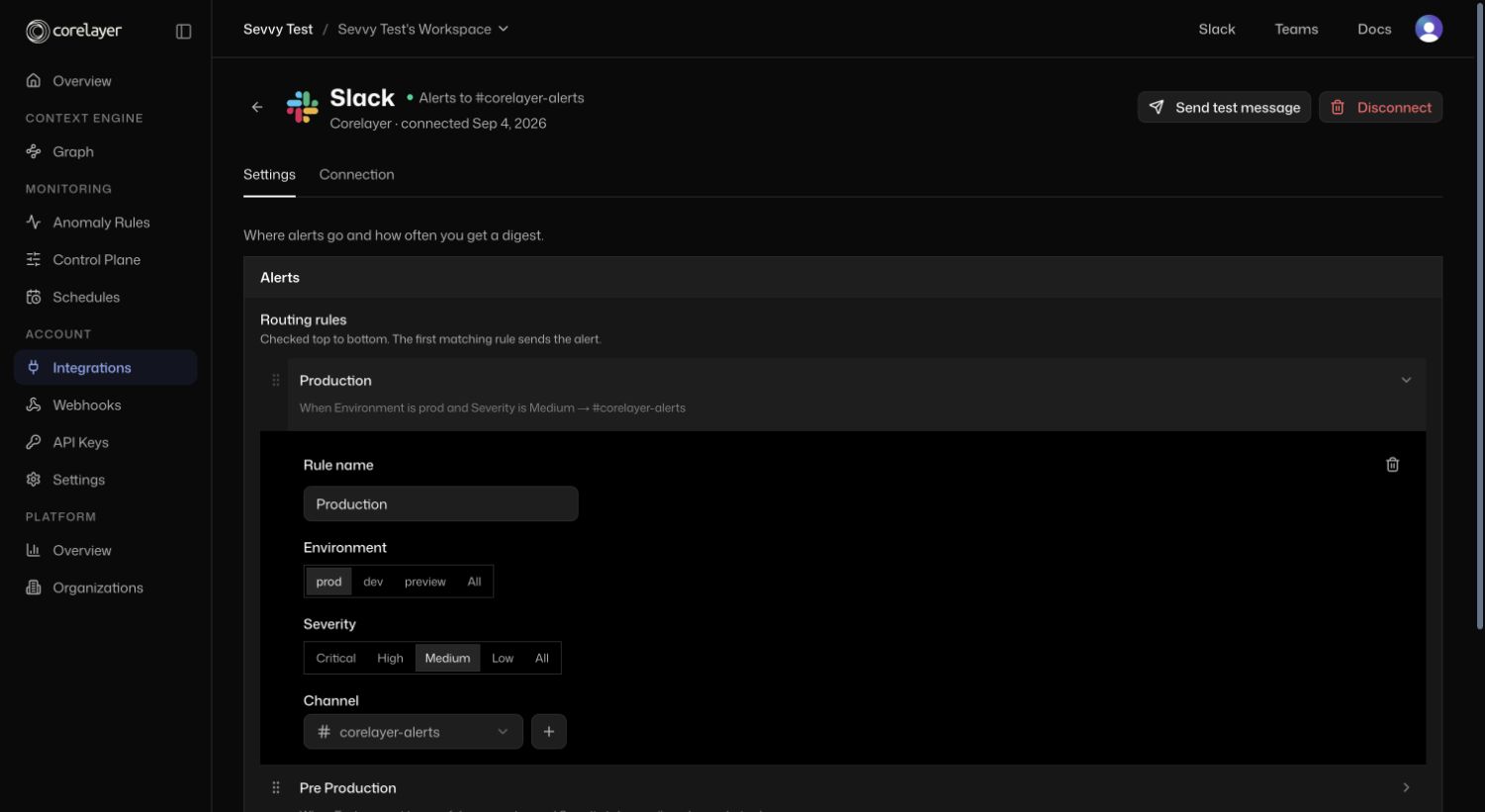
An expanded Slack routing rule shows the Environment, Severity, and Channel controls.
- Route critical production issues to your on-call channel
- Route staging issues to a staging channel
- Route development issues to a development channel
What Corelayer Can Do With Slack
Once connected, Corelayer will:- Send real-time notifications when issues are detected
- Post debugging summaries and root-cause analysis to your channels
- Deliver digest messages with aggregated issue reports
- Create scheduled tasks from Slack, including recurring checks and one-shot reminders
- Route issue notifications to your configured channels based on environment and severity
Scheduled Tasks From Slack
You can ask Corelayer in Slack to run a task on a schedule and post the result back to the same channel. Examples:- “Every weekday at 9am, post a summary of open critical issues”
- “Every hour, check whether new high-severity issues appeared”
- “Remind me in 20 minutes to check this issue again”
Managing Your Integration
Disconnecting
To disconnect your Slack integration:- Navigate to Settings > Integrations
- Find your Slack integration and click Uninstall
- Confirm the uninstallation
- Optionally, remove the Corelayer app from your Slack workspace settings
Troubleshooting
Integration Not Working?
- Verify the Corelayer app is installed in your Slack workspace
- Ensure the bot has been invited to the channels you’ve configured
- Check that your Slack workspace permissions allow third-party app installations
- If an issue notification is missing, check that its environment and severity match the routing criteria for the channel
- Try reinstalling the integration if notifications are not appearing